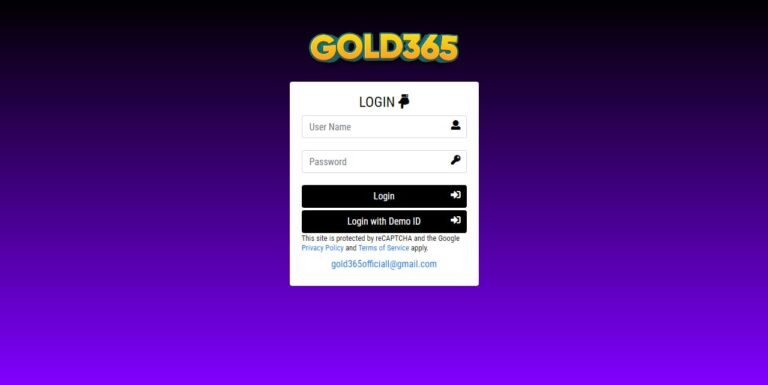
How to Install the gold365 App: A Step‑by‑Step Guide for Seamless Setup
Introduction
Mobile applications have become the primary gateway for users to access services, and the gold365 platform is no exception. Whether you are a seasoned investor, a casual user, or someone exploring new financial tools, having the gold365 app on your device ensures that you stay connected to real‑time market data, secure transactions, and personalized insights. This guide walks you through the entire installation process, from checking device compatibility to completing the first login, so you can start using the app confidently and efficiently.
Why Install the gold365 App?
The gold365 ecosystem offers a range of benefits that are optimized for mobile users. The app delivers push notifications for price alerts, streamlined order execution, and an intuitive dashboard that adapts to both small‑screen smartphones and larger tablets. In addition, the app incorporates industry‑standard encryption, providing a secure environment for managing your portfolio on the go. By installing the app, you gain immediate access to features that are not always available on the web version, such as biometric authentication, offline charting, and instant trade confirmations.
System Requirements
Android Devices
To ensure smooth performance on Android, your device should meet the following minimum specifications:
- Operating System: Android 8.0 (Oreo) or later
- RAM: 2 GB or more
- Storage: At least 150 MB of free space for installation and updates
- Internet: Stable Wi‑Fi or 4G/5G connection for downloading the app and real‑time data
iOS Devices
For iPhone and iPad users, the recommended specifications are:
- Operating System: iOS 13.0 or later
- Device: iPhone 6S or newer, iPad Air or newer models
- RAM: 2 GB or more (built‑in)
- Storage: Minimum 150 MB of free space
- Internet: Reliable Wi‑Fi or cellular data for download and synchronization
Downloading the gold365 App
From the Google Play Store (Android)
1. Unlock your Android device and open the Google Play Store app.
2. In the search bar at the top, type gold365 and tap the search icon.
3. Locate the official gold365 application—identified by the gold‑colored logo and publisher name.
4. Tap Install. The Play Store will download the package (.apk) and automatically begin the installation process.
From the Apple App Store (iOS)
1. Open the App Store on your iPhone or iPad.
2. Tap the search tab and enter gold365 into the search field.
3. Select the official gold365 app from the results list.
4. Press the Get button, then confirm with Face ID, Touch ID, or your Apple ID password. The download will start, followed by automatic installation.
Verifying the Authenticity of the App
It is crucial to ensure you are installing the genuine gold365 application to protect your personal data and financial assets. Confirm the following details before proceeding:
- Publisher: Verify that the developer is listed as “gold365 Official” (or an equivalent trusted entity).
- Ratings and Reviews: High average ratings and a substantial number of reviews generally indicate reliability.
- App Icon and Screenshots: Compare the downloaded app’s icon and promotional images with those featured on the official website.
By cross‑checking these elements, you reduce the risk of installing counterfeit or malicious software.
Initial Setup After Installation
Opening the App for the First Time
Once the installation completes, locate the gold365 icon on your home screen or app drawer and tap it to launch. The app will perform a brief configuration check, which includes verifying your device’s operating system version and available storage.
Granting Permissions
The app requests several permissions to deliver its full functionality:
- Location Access: Enables geofencing and region‑specific market alerts.
- Push Notifications: Allows real‑time price and news updates.
- Storage Access: Facilitates caching of charts for offline viewing.
Approve these permissions for optimal performance; you may adjust them later in your device’s settings.
Creating or Accessing Your Account
If you already have a gold365 account, you can sign in directly. New users will need to create an account before proceeding.
Existing Users – Login
Tap the Login button on the welcome screen. Enter your registered email address and password, then press Sign In. For added security, the app supports two‑factor authentication (2FA) via SMS or authenticator apps. After successful login, you will land on the dashboard where you can view your portfolio, recent trades, and market news.
New Users – Registration
To start using gold365, tap the Register link. Fill out the short registration form with your name, email, phone number, and a secure password. After submitting, you will receive a verification code via email or SMS—enter this code to activate your account. Once your profile is verified, you can set up additional security measures such as biometric login and 2FA.
Important Links
For direct access to the platform’s main page, login portal, or registration form, use the following official resources:
Customizing Your App Experience
After you have successfully logged in, spend a few minutes customizing the app to match your workflow. The settings menu offers options such as:
- Theme Selection: Light or dark mode based on personal preference or ambient lighting.
- Notification Preferences: Choose which alerts you receive (price thresholds, news releases, order confirmations).
- Language Settings: Select from multiple supported languages for interface text.
- Security Controls: Enable biometric authentication (fingerprint or facial recognition) for quicker, yet secure, access.
These adjustments help you stay organized and ensure that the app delivers relevant information without unnecessary distractions.
Troubleshooting Common Installation Issues
App Fails to Download
If the download stalls, verify that your internet connection is stable. Switching from cellular data to Wi‑Fi often resolves bandwidth limitations. Additionally, clear the cache of the Play Store or App Store, then attempt the download again.
Insufficient Storage Error
Free up space by deleting unused apps, clearing cached data, or moving media files to cloud storage. After reclaiming at least 200 MB of space, retry the installation.
Compatibility Messages
Older devices may display a “not compatible” warning. In such cases, consider updating your operating system if a newer version is available. If the hardware does not meet the minimum required specifications, using the web version of gold365 may be the best alternative.
Keeping the App Updated
Regular updates are essential for security patches, new features, and performance improvements. Enable automatic updates in your device’s app store settings so you receive the latest version without manual intervention. Alternatively, you can check for updates manually by visiting the app’s page in the Play Store or App Store and tapping “Update” when prompted.
Conclusion
Installing the gold365 app is a straightforward process that unlocks a powerful suite of tools for managing your financial activities on the move. By following the steps outlined in this guide—verifying system requirements, downloading from the official store, confirming app authenticity, and completing the login or registration—you ensure a secure and efficient setup. Once installed, take advantage of customization options, stay proactive with notifications, and maintain regular updates to enjoy the full benefits of the gold365 platform. With the app properly configured, you’re ready to monitor markets, execute trades, and make informed decisions wherever you are.